

01 — Overview
A focused tool, not a platform.
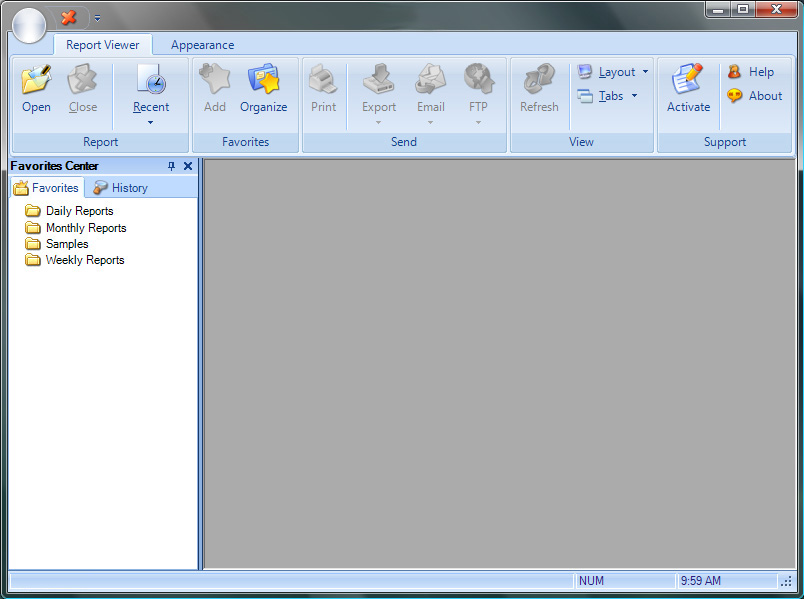
ViewerFX® does one thing well: it opens Crystal Reports files (.rpt) and lets your team work with them. View saved data, refresh against live sources, drill into parameters, export to a dozen formats, and deliver reports by email, FTP, or print. No Crystal Reports installation required.
For organizations still running Crystal Reports as part of their reporting infrastructure, ViewerFX® gives end users access to the reports they need without the cost or complexity of full Crystal Reports licenses for everyone who reads a report. It's a desktop-only Windows application, sold as a perpetual license: pay once, use it indefinitely.
02 — Learn more
The full picture, on the ViewerFX® site.
Feature deep-dives, edition comparisons, guides, and answers to common questions live on the dedicated ViewerFX® site at viewcrystalreports.com.
Features
Viewing, refreshing, exporting, and delivery, in depth.
Explore features →Compare editions
See what's included in Free, Standard, and Site editions.
Compare editions →Questions?
Crystal Reports compatibility, licensing, trials, and more.
Read the FAQ →Guides
Step-by-step walkthroughs for everyday ViewerFX® tasks.
Browse guides →Screenshots
A look at the interface in everyday use.
View screenshots →Version history
Actively developed since 2005. Every version, every release.
See the changelog →03 — Download
Get started.
Download the free trial below. The trial is fully functional so you can evaluate ViewerFX® in your real reporting environment before purchasing.
Standard Edition
For Windows desktops and individual users. Single-user licensing.
Download StandardCompatible with Crystal Reports 8.5 and later. Windows only.
Need installation help? See the install steps below. Using it non-commercially? Register for a free license. Ready to buy? See pricing.
04 — Install
Install in minutes.
ViewerFX® is a Windows application. The installer takes care of everything from prerequisites to first launch.
What you'll need
- Windows 10 or later
- Crystal Reports runtime is included; no separate Crystal Reports installation required
- Administrator privileges to run the installer
- Approximately 434 MB of disk space once installed (the download is about 100 MB)
- Internet connection for license registration (one-time)
-
Download the installer
Download the Standard Edition installer above. ViewerFX® is a desktop-only product; the installer runs on any supported Windows desktop.
-
Run the installer
Right-click the downloaded .exe file and select "Run as administrator." Windows User Account Control will prompt for confirmation. The installer will guide you through the process and accept default settings for most environments.
-
Accept the license agreement
Read and accept the ViewerFX® license agreement to continue. The agreement covers your rights and obligations as a licensee.
-
Choose installation location
The default location (Program Files) works for most installations. Change it only if your IT environment requires a custom path.
-
Complete installation
The installer copies files, registers components, and creates Start menu shortcuts. This takes about a minute on most systems.
-
First launch
Launch ViewerFX® from the Start menu or desktop shortcut. The first time it runs, you'll see the registration window where you can enter your license key or continue in trial mode.
Once installed, register for a free license or activate a purchased license. Run into trouble? Contact support.